Find a tab across windows
Type part of a title or URL in the side panel to find an open tab. If you only remember what the page was about, try AI search. Click a result to open that tab.
How to search all tabs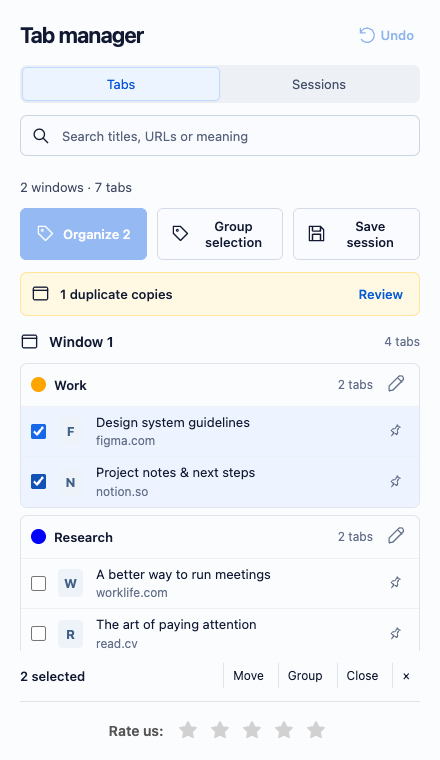
 Tab manager
Add to Chrome
Tab manager is a free browser extension for managing your workspace. Search and group tabs, reopen closed pages, or save a session for later. Saved sessions stay in your browser, and you don’t need an account.
Choose a task or try searching for “design” in the panel.
Type part of a title or URL in the side panel to find an open tab. If you only remember what the page was about, try AI search. Click a result to open that tab.
How to search all tabsSelect tabs to move, group or close together. Click Organize to review suggested groups before applying them. Duplicate review shows tabs with the same URL so you can choose which copy to keep.
Try duplicate review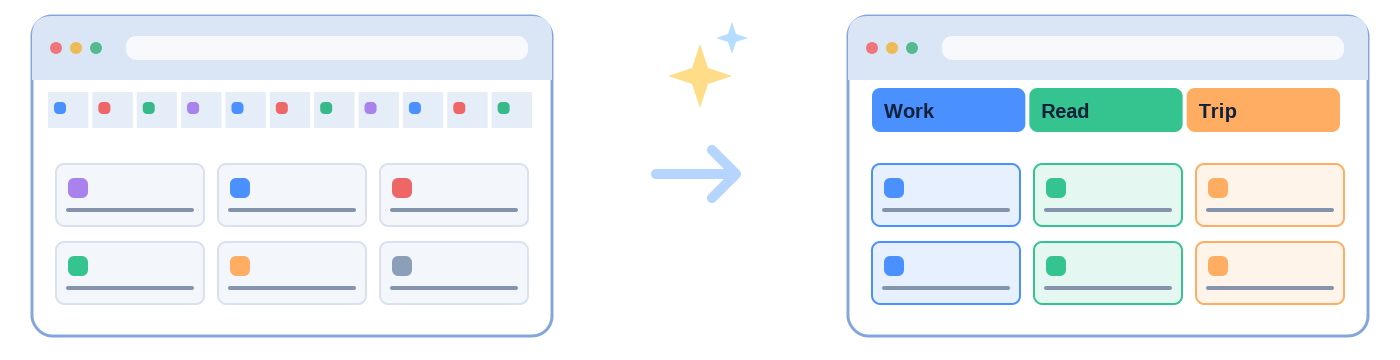
Click Save session and name your workspace. When you need it again, open Sessions and choose Restore in new windows to reopen the saved tabs and groups.
Save tabs and sessions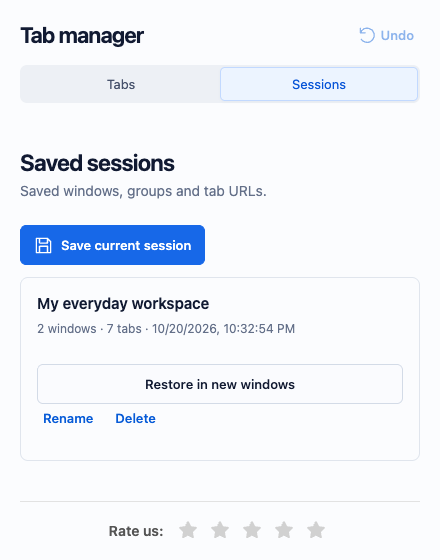
Open Recently closed in the side panel. Search by title or URL, then select a page to reopen it. Select a closed window to bring its tabs back together.
How to open closed tabs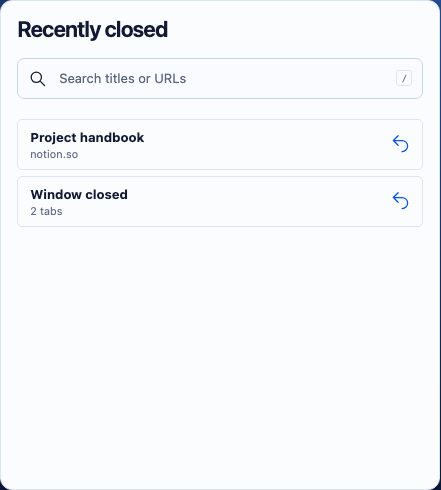
Add the free extension from the Chrome Web Store.
Open Chrome’s Extensions menu and click the pin beside Tab manager.
Click the Tab manager icon to search, group or save the tabs you already have open.
Step-by-step guides to finding, switching, arranging, duplicating and restoring Chrome tabs.
Find an open page with Tab Search, @tabs or the Tab manager side panel.
Read articleUse the Duplicate command or open the same address with keyboard shortcuts.
Read articleReopen recent tabs, find older pages in History and return to a saved session.
Read articleMove the tab strip back to the top with the tab menu or Appearance settings.
Read articleUse keyboard shortcuts, jump to a tab by number or find a page across windows.
Read articleYes. Install it for free from the Chrome Web Store. You can start using it without an account.
Your browser stores saved sessions locally. Each session contains your saved windows, groups and tab URLs. The website demo uses sample data.
Tabs with exactly the same full URL. You review the copies and choose which one to keep before closing anything.
You can undo the last supported grouping, moving or closing action. Reopening a URL does not restore unsaved drafts or login state. Tabs you changed manually may be skipped.
Click Organize to get suggestions based on page content and existing groups. Review the suggested groups and choose which changes to apply.
Find the tab you need and save your workspace for later.
Add to Chrome